This is a very basic html tutorial designed around making bios for The Knot. If you have
more involved questions, page me there (cassiepuff), and I might be able to help. I am not a web designer
or anything like that, I'm just trying to share the things I've picked up over the years in
tinkering with my own website and over the past couple months while making my own bio, which
evolves on a regular basis. A mention of a website does not constitute an endorsement on my part. I do not own or have
any connection with any of these websites and make no guarentees about how they work. I'm just
listing some options that I've seen used. Please don't sue me!
For text, just type in what you want to see in your bio. You make paragraphs by putting text
inbetween <p>Your paragraph here.</p>, which looks like:
Your paragraph here.
You can make headings of different sizes, 1 being the largest, by writing titles like this:
<h1>Biggest</h1>
<h2>Big</h2>
<h3>Medium</h3>
Which comes out looking like:
Biggest
Big
Medium
And so on, using larger numbers to get smaller headings.
If you don't want the extra bit of space that the <p></p> puts in, you can use
<br> to put in a carriage return. For example:
Some text here.<br>Some more text here.
will look like:
Some text here. Some more text here.
You can center text or pictures by enclosing it in <Center>Centered Text.</Center>,
which will look like:
Centered Text.
If you'd like italicized text, encase it in <i>Italics</i>, which looks like: Italics
If you'd like bold text, use <b>Bold</b>: Bold
If you'd like underlined text, use <u>Underlined</u>: Underlined
You can also specify the font face, size, and color as follows:
<FONT Face = "Times New Roman" Size = "2" color = "white">
and changing the font face to one that you like, the size to something that looks good to you
(a smaller number is a smaller size), and changing the color to look good with your background.
At the end of your text, put a </Font>. For example:
<FONT Face = "Script" Size = "5" Color = "Green">Green Cursive</FONT>
will look like:
Green Cursive
You can also put in a link to another page. Make sure that you put in the whole address,
including the http part.
<A HREF = "http://www.google.com">Google</A> will look like: Google
You can put a link on a picture too (More on pictures in the next section).
<A HREF = "http://www.google.com"><img src = "http://www.google.com/logos/Logo_25blk.gif"></A> will look like:
Also, you can link to places within your webpage. In order to do this, you need to name your sections, so to duplicate
my table of contents in my bio,
you'd put in the following code towards the top of the bio (after any special codes listed in another section below):
<H3>Table of Contents</H3>
<A HREF = "#Us">About me and my fiancé</A><br>
<A HREF = "#Engagement">About the engagement</A><br>
And so on....
Then, for each section heading, you need to specify the name that you linked to in the table of contents, so the
headings will now look like:
<H3><A NAME = "Us">About me and my fiancé</A></H3>
Text and pictures and stuffs for this section.
<H3><A NAME = "Engagement">About the engagement</A></H3>
The text and pictures for this section,
Just name each section that you want a link to and then compile your table of contents.
You can also change the color of the links, if you don't like The Knot's defaults. In an ordinary html document,
you can specify that in the body tag at the beginning of the document (<body LINK = ""......>)using hex color codes and LINK="code", VLINK="code", and ALINK="code" for an
unviewed link, a viewed link, and an active link,
respectively. In the bios, this won't work, as that code is generated automatically by The Knot, and cannot be
overridden with those tags. You can, however, specify just after the link in your A HREF what the style is,
using the hexadecimal color numbers, as follows:
<A HREF = "http://www.cassiepuff.net/knotbiohelp.html" style="color:#006699" target="_new">
this here web page</A><br>
which looks like:
this here web page
The target="_new" in that code simply tells the browser to open up the link in a new window.
First, you need to have your pictures online somewhere. Many knotties use places like these:
www.shutterfly.com or
www.photobucket.com. I personally use my own website for that purpose. All you need
is a place that will give you a URL to your photo like http://www.myphotosite.com/mypicture.jpg
or http://www.myphotosite.com/mypicture. Ofoto.com, kodakgallery.com and snapfish.com don't seem to work and play well with the knot.
Once you have the pictures uploaded, click on one that you'd like to put in your bio. If it shows
a URL that ends in .jpg or another image format, copy the address from the top of the browser
window. For Shutterfly, in order to get that URL, click on the
thumbnail picture so that you have a page with just the one picture that you want to post.
Right mouse click on it and select "Properties." It will show you a long internet address.
Copy this address instead of the browser window one. In another browser window, have The Knot open
to the bio editing page (found by clicking on the My Community Bio link in the upper left
corner when you are on one of the message board pages). In the form space that they give you
write in <img src = "http://www.yourphotosite.com/yourphotopath">, replacing the URL
with the one that you just copied from your photo site. You'll want to write a caption for
the photo underneath it or on top of it, so, before or after that code, depending on where
you want the caption, write <p>Your description here</p>, so this:
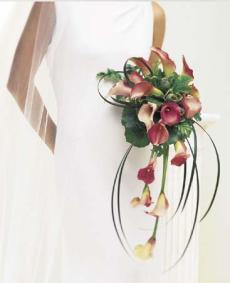
<img src = "http://www.cassiepuff.net/calla_cascasde.jpg">
<p>A calla lilly bouquet that I like.</p>
will look like this:
The Knot doesn't accept the hex codes for background colors, so you need an image for your
background, whether that's just a plain color, some tiled thing, or something else. Towards
the top of your bio, put in the following code to set the background color:
<BODY background="http://www.yourbackgroundsite.com/yourbackgroundimage.jpg">
Replacing the URL with the appropriate one for the image you want as your background. Plain
colors or something that's not too noisy works well. You want people to be able to read your
text!
If you really want to use a hex code or any of the named colors, put this at the top of your bio:
<style type="text/css">
body {background-color: #CCFFCC}
#popup{background-color: #CCFFCC;}
</style> Here is a page with lots of colors; just click on the family of colors that you want and copy the color name or code and paste it into the above CSS style code instead of the #CCFFCC that is there.
Here is a neat little script tool that Nestie DzyMrs set up that will give you the code to cut and paste for a good number of background and font colors and shows you a preview of what it will look like.
You can also use the CSS tags to put in a background image. The code will look like:
<style>
body {background-image: url(http://www.mybackgroundimagesite.com/pic.jpg);} #popup{background-image: url(http://http://www.mybackgroundimagesite.com/pic.jpg);}
</style>
Keep in mind that these codes can only make it more difficult to steal your pictures, not impossible. If you really don't
want a picture to be used by anyone else, don't post it at all.
Disable the Internet Explorer Image Toolbar
This first code is a meta-tag that will disable the new Internet Explorer image toolbar,
protecting your pictures from that method of stealing. Just cut and paste into the very
top of your bio.
<META HTTP-EQUIV="imagetoolbar" CONTENT="no">
Disable Dragging Pictures to the Desktop or a Folder
This code disables the function of clicking on a picture and dragging it to the computer as a file
<body ondragstart="alert('Page me if you want to borrow a picture.')">
Disable Highlighting Text or Images
This code disables the function of highlighting text or images, which can then be copied.
<body onselectstart="return false">
Disable Right Mouse Clicking on Images
This code will disable right clicking on images in many browsers, preventing stealing pictures by
that method. Cut and paste this just below the meta-tag given above, or, if you prefer, skip
to the next code, which disables right mouse clicking altogether. You cannot use both this and the
code that disables right mouse clicking on images only. Pick one or the other.
<SCRIPT LANGUAGE="JavaScript">
<!-- Begin
function right(e) {
var msg = "Please page me and let me know you want to use one of my photos";
if (navigator.appName == 'Netscape' && e.which == 3) {
alert(msg);
return false;
}
if (navigator.appName == 'Microsoft Internet Explorer' && event.button==2) {
alert(msg);
return false;
}
else return true;
}
function trap()
{
if(document.images)
{
for(i=0;i<document.images.length;i++)
{
document.images[i].onmousedown = right;
document.images[i].onmouseup = right;
}
}
}
// End -->
</SCRIPT>
<BODY onLoad="trap()">
Disable Right Mouse Clicking
This code will disable right mouse clicking anywhere in your bio in many browsers, which
keeps people from looking at the source for your bio and finding your pictures that way in the
little bio window. If they open your bio in a full window, they will still be able to see the
source. Cut and paste this below the meta-tag given earlier. You cannot use both this and the
code that disables right mouse clicking on images only. Pick one or the other.
<SCRIPT LANGUAGE="JavaScript">
<!-- Begin
function right(e) {
if (navigator.appName == 'Netscape' &&
(e.which == 2 || e.which == 3)) {
alert('Page me if you want to use a picture or want to see my html code.');
return false;
}
else if (navigator.appName == 'Microsoft Internet Explorer' &&
(event.button==2 || event.button == 3)) {
alert('Page me if you want to use a picture or want to see my html code.');
return false;
}
return true;
}
document.onmousedown=right;
if (document.layers) window.captureEvents(Event.MOUSEDOWN);
window.onmousedown=right;
// End -->
</SCRIPT>
Another Disable All Right Mouse Clicking
<script language="JavaScript">
// distributed by http://hypergurl.com
<!--
var popup="Sorry, right-click is disabled.";
function noway(go) {
if (document.all) {
if (event.button == 2) {
alert(popup);
return false;
}
}
if (document.layers) {
if (go.which == 3) {
alert(popup);
return false;
}
}
}
if (document.layers) {
document.captureEvents(Event.MOUSEDOWN);
}
document.onmousedown=noway;
// --> </script>
Yet Another Disable All Right Mouse Clicking (works with new format)
This code will put a little form in your bio that can be used to open up somebody's bio.
Thanks to knottie HurricaneMB for this code. You can visit her website here.
<h4>Knottie Bio Lookup Tool</h4>
<form method="get" action="http://www.theknot.com/co_profileview.htm">
<input name="profilename" type="text" value="Enter Knottie Name" onfocus="this.value='';">
<input name="submit" type="submit" value="Go To Bio">
</form>
<p style="font-size: 8pt;">Feel free to <a href="http://www.bluehurricane.com/wedding/code.html" target="_new" style="color:#006699">steal this code</a> and put it in your own bio.</p>
<h5>Knottie Bio Lookup Tool (new format)</h5>
<form method="get" action="http://talk.theknot.com/BOARDS/User/ForumMembers.aspx" TARGET="_new">
<input name="q" type="text" value="Enter Knottie Name" onfocus="this.value='';"><br><input name="submit" type="submit" value="Go To User Search">
</form>
<p>Feel free to <A HREF = "http://www.cassiepuff.net/knotbiohelp.html#Codes">steal this code</A> for your own bio.</p>
<center>;
<h5>;THE NEST BIO LOOKUP TOOL</h5>;
<form method="get" action="http://talk.thenest.com/talk/talk_profileview.html">;
<input name="profilename" type="text" value="Enter Nest Screenname" onfocus="this.value='';">;
<input name="submit" type="submit" value="Go To Bio">;
</form>;
<p style="font-size: 8pt;">;Feel free to <a href="http://www.bluehurricane.com/wedding/code2.html" target="_new">;steal this code</a>; and put it in your own bio.</p>;
</center>;
This is originally from Nestie DzyMrs. I've altered it for the new profiles. You can also get it from her site.
<script language="JavaScript">;var b;var wh="width=523,height=500";function setB(){b=document.getElementById("bN").value;}
function gK(){return "http://community.theknot.com/cs/ks/user/default.aspx?UserName="+b;}function gN(){return "http://community.thenest.com/cs/ks/user/default.aspx?UserName="+b;}
function kB(){setB();window.open(gK(),"",wh);}function nB(){setB();window.open(gN(),"",wh);}
function bB(){setB();var f="<html>;<head>;</head>;<frameset cols=50%,50%>;<frame src="+gK()+">;<frame src="+gN()+">;</frameset>;<html>;";var w=window.open("","","width=980,height=500");w.document.write(f);}</script>;
<center>;<div style="font-size:14pt;">;Knot/Nest Bio Lookup</div>;
<input type="text" id="bN" value="Enter Bio Name" />;<br/>;
<a href="javascript:kB();">;Knot</a>; - <a href="javascript:nB();">;Nest</a>; - <a href="javascript:bB();">;Both</a>;
<div style="font-size:8pt;">;<a href="http://www.ekotadesign.com/knot/" target="_new">;Add this to your bio.</a>;</div>;</center>;
Knottie Bio Search
Knottie Bio Search Tool
Powered by . Get this code for use in your bio from ammawe.
This code is defunct after many knot changes to format. This code will put a form in your bio that will do a google search through the knottie bios.
It was originally made up by knottie ammawe, who no longer has the code up, so I took it from
knottie HurricaneMB. Thanks girls! If you'd like to change the google logo so that it matches your
background better, go here.
<h4>Knottie Bio Search Tool</h4>
<FORM METHOD="get" action="http://www.google.com/search" TARGET="_new">
<INPUT TYPE="text" NAME="q" VALUE="Enter Search Here" onfocus="this.value='';">
<INPUT TYPE="hidden" NAME="q" VALUE="site:theKnot.com +co_profileview">
<INPUT name="submit" TYPE="submit" VALUE="Search">
</FORM>
<p style="font-size: 8pt;">Powered by <a href="http://www.google.com" target = "_new"><IMG SRC="http://www.google.com/logos/Logo_25gry.gif" BORDER="0" ALT="Google" ALIGN="absmiddle"></a>.<br>
Get this code for use in your bio from <A HREF="http://www.cassiepuff.net/knotbiohelp.html">*cassiepuff*</A>.
Nestie Bio Search
I altered the knottie bio search code so it would work for nestie bios. This code is also defunct after many nest changes.
<h4>Nestie Bio Search Tool</h4>
<FORM METHOD="get" action="http://www.google.com/search" TARGET="_new">
<INPUT TYPE="text" NAME="q" VALUE="Enter Search Here" onfocus="this.value='';">
<INPUT TYPE="hidden" NAME="q" VALUE="site:thenest.com +talk_profileview">
<INPUT name="submit" TYPE="submit" VALUE="Search">
</FORM>
<p style="font-size: 8pt;">Powered by <a href="http://www.google.com" target = "_new"><IMG SRC="http://www.google.com/logos/Logo_25gry.gif" BORDER="0" ALT="Google" ALIGN="absmiddle"></a>.<br>
Get this code for use in your bio from <A HREF="http://www.cassiepuff.net/knotbiohelp.html">*cassiepuff*</A>.
This code used to let you search a specific board. It no longer works. It was also originally from knottie
HurricaneMB. It's currently set up to search the military brides board. You can change that
easily by changing the "C2001019" to whatever"CXXXXXXX" appears in the address for your favorite
board. I might get around to altering it to work with the new board structures one of these days.
<h4>Search the Military Brides Boards</h4>
<form method="get" action="http://www.theknot.com/co_mbsearch2k.htm" TARGET="_new">
<input name="search" type="text">
<INPUT TYPE="hidden" NAME="area" VALUE="C2001019">
<input name="submit2" type="submit" value="Search">
</form>
<p style="font-size: 8pt;"><a href="http://www.bluehurricane.com/wedding/knot/cincicode.html">steal this code / make this work for your city</a></p>
You can view your profile and bio by either clicking on your user name on a post you've made or by
putting in your user name in place of the dummy one here for the Knot:
Profile: http://community.theknot.com/cs/ks/user/default.aspx?UserName=dummyusername
Bio: http://community.theknot.com/cs/ks/user/page.aspx?username=dummyusername
Or here for the Nest:
Profile: http://community.thenest.com/cs/ks/user/default.aspx?UserName=dummyusername
Bio: http://community.thenest.com/cs/ks/user/page.aspx?username=dummyusername
Just cut and paste that into a browser window and hit enter.
These are tips and lingo compiled by knottie BanaMiller and expanded on by many knotties and nesties. It is quoted mostly verbatim.
Below, you will find some helpful hints and tidbits about navigating through the Knot message boards and planning the big day! I compiled this myself and from other knotties (such as LauraNovBride) to help out the new knotties out there! If you have any good pointers that can be added to this ongoing posting, please respond to this post. I will add to it and will repost this from time to time.
1) How to search for specific BIOs:
To look up someone’s bio (or your own), cut and paste in a new browser this link:
http://www.theknot.com/co_profileview.htm?profilename=theirknotname
Then replace “theirknotname” with the knottie name and VOILA, you have the bio!
***When cutting and pasting this link into a new browser, make sure that you do not leave any spaces.***
2) How to create/enhance your Knot BIO:
Check out http://www.knothelp.com/
This is now the old clatterbone site. Also look for the bio called HelpWithYourBio. There is a link on there to a message board on ezboard. You will find loads of helpful tips on there!
Also, when storing photos online to display in your BIO, use your own web site space or programs like Snapfish or Shutterfly. Ofoto will not work.
3) Check out the “unofficial” bio site! Magnificent Bliss is a great site which has tons of links to Knot bios. People also create bios for various themes such as dress designers, bouquets, seasons, colors, ceremony styles...etc. http://www.magnificentbliss.com/knot/
4) Still craving more ideas? Check out the bio for mrsterrytobe.
There are lots of specialty bios on there to help you with your planning.
5) Eager to start the honeymoon planning? Check out the HoneymoonBio. On there, you will find great vacation planning advice, links, and honeymoon reviews for land and sea based travels!
6) Is the Knot just not enough? Check out the message boards on the Wedding Channel. There are lots of great threads on there with tons of pictures and ideas. You can also create a wedding journal, which is similar to a bio. www.weddingchannel.com
7) Do you want to share a website address, but it is so long that it breaks up into multiple lines when you post in on the knot? Well I found this great site that will solve this problem. http://tinyurl.com/
On it, you can cut and paste a super long url and it will make it “tiny,” hence the name of their web site! This is helpful on the knot boards because then you don't have to cut and paste long url's and have to worry about not leaving spaces when trying to access it.
8)Be careful of vendors who like to lurk on the knot boards. Sometimes they will even pose as brides to be. Make sure you get several references and not just from these boards. Before booking a vendor, make it a practice to check the Better Business Bureau. You can search for a vendor on their website at: http://www.bbb.org/
Here is some common "knot lingo" you will find on the wedding planning boards:
AW = "Attention Whore" (not a very nice term)
BC, BCP = birth control, birth control pills
BF = Boyfriend or Best Friend
BM = Bridesmaid or Best Man
BP = Bridal Party
DD = Dear Daughter
DS = Dear Son
DF = Dear (or darned, or dratted, or …) Fiancé
DH = Dear Husband
E-ring = engagement ring
E-party = engagement party
FG = Flower Girl
FI = Fiancé (male) or Fiancée (female)
FIL = Father In Law
FILs = Future in-laws, sometimes referred to as:
FBIL = Future Brother-in-law
FFIL = Future Father-in-law
FMIL = Future Mother-in-law
FSIL = Future Sister-in-law
GF = Girlfriend
GM = Groomsmen
GTG = a Knottie get-together
HM = Honeymoon
HTH = Hope this helps
IHO = In Honor Of
ILs = In-laws
IMHO = In my humble opinion
IMNSHO = In my not so humble opinion
JK = just kidding, or joking
JP = Justice of the Peace
LMAO = Laughing my ass off
LOL = Laughing out loud
LTBM = Living together before marriage
MIL = Mother In Law
MOH = Maid / Matron of Honor
MS = Martha Stewart
NFP = natural family planning
NFT = No Further Text
NH= New Husband
NMS = Not my style
NWMT = Not worth my time
NWR = Not Wedding Related
OMG = Oh my gosh / god
OOT - Out of Town
P&E = Planning and Etiquette board
PIB = Pictures in Bio
PSA = Public Service Announcement
RB = Ring Bearer
RD = Rehearsal Dinner
RP = Repost
SAHM = stay-at-home mom
SAHW = stay-at-home wife
SBD = South Beach Diet
STDs = Save The Date cards
TIA = Thanks In Advance
TMI = Too Much Information
TROLL = Someone posting a fake question or a nasty reply to get a reaction
TTC = Trying to conceive
TY = Thank you
WH = Wonderful husband
WP = wedding party
WW = Weight Watchers
XP = Cross posted (posted to more than one board)
I know all this lingo can be confusing at first, but the scary thing is, after a while, you may find yourself saying "FI" "STDs" "E-party" etc.. outloud. Around non-knottie folks, people might give you a strange look! :)
***Also FinallyMarthaC created a bio that has a list of knot lingo...it's called: BoardLingo
INS and OUTS of the Knot message boards (taken from another knottie long ago, but tweaked by me just a tad!)
1. When you hit the refresh button on your web browser, write after posting something on the Knot, it makes your posts reappear on the message board again and again for as many times as you hit that refresh button. It is annoying to others because it fills up the board with duplicate postings. Instead, to check if you get responses, click on any of these links to see if you got a response: 1) "My Posts" on the left side blue menu or 2) the name of the board you are in on top (to the right of the blue menu) just below where it says "chat and boards". You only have to do this once, after your post. After that, it is not an issue unless you post again. Don't worry, most of us all did this back when we were new as well! If you do repost by mistake, you can open up the duplicate posting and press delete. See, all is not lost. A very simple and easy solution to a common problem!
2. Be careful how much personal info you give on the knot and internet at large (examples - full name, email addresses etc..) This is the internet after all! We would like to think it is a "safe" community, but that isn't always the case. To avoid getting hit by the spam monster when posting your email address, do not write it like it really is: SuzieQ@computeremail.com. Rather post it like this: SuzieQ “at” computeremail.com. That breaks up your email address so spam creators cannot snatch it off the net.
3. Trolls = ‘troublemakers’ on the knot. They often post rude or insulting things. The only way to combat them is to *ignore* them. The more people respond to them, the more they post.
4. Let's talk about when one "pages" someone. People do this when they want to contact a particular knottie. Others might page you to ask you questions about your planning/bio etc.. In order to never miss a page, it is good practice to search for your knottie name on the boards every so often. Do this in the "search the knot" section on the blue menu to the left.
5. Before posting a question regarding invitation wording, BM/GM gift ideas, and other common discussions on these boards, search the boards for previous posts on the subject matter. Only search using *one* word. The questions are likely to have been asked countless times before, and you will get even more answers/suggestions through the search than you will get from just posting about it.
6. When posting, it is good to be as specific as possible in your subject line to get the most response from other knotties.
-For example, rather than a subject line that reads "Has anyone heard of this photographer...."
Write: "John Smith photographer...anyone use him?"
-Rather than "Anyone use these vendors?"
Write: "Anyone use Springtime Florist company?"
You will get more responses if you write separate posts for each vendor with their name in the subject line.
7. It is also good to bookmark your favorite boards. That way, you can access that in a quick and easy fashion!
8. To log off the knot, look for the link down at the very bottom on the right hand side.
9. Rather than testing your bio by posting on the boards and clicking on the pop-up link, simply save your bio to your favorites links. To do this, you will need to search for your bio (see first bit of advice on here up above) to open it in a separate web browser and save it to your favorites folder. That way you can easily refer to it when you want. Plus it can be annoying to see multiple "I'm just testing my bio…" posts.
10. And lastly…be nice to your fellow knotties. We are all part of this crazy wedding planning thing together! The Golden Rule can easily be applied to posting on message boards.